Best HDR App for iPhone for Bracketed Photos
A bright window behind a dim interior can defeat even a modern iPhone camera. Expose for the window and the room goes dark. Expose for the room and the sky outside becomes a white block with no detail. The best HDR app for iPhone is not simply the one that makes a single photo look punchier. It should turn a properly captured exposure bracket into one clean, full-resolution image without creating a new editing job.
For photographers who shoot 3-, 5-, or 7-frame auto-exposure brackets, the real question is workflow. Can the app find related frames quickly? Can it compensate for small handheld shifts? Can it manage movement in trees, water, people, and traffic? And can it export a result that is ready for your library in seconds, without sending personal photos to a remote server?
What Makes the Best HDR App for iPhone?
A useful HDR app starts with actual exposure-bracket merging. This is different from applying an HDR-style filter to one image. A single image has a fixed amount of captured highlight and shadow information. Editing can change how that information appears, but it cannot reliably recover detail that was clipped to pure white or buried in noise.
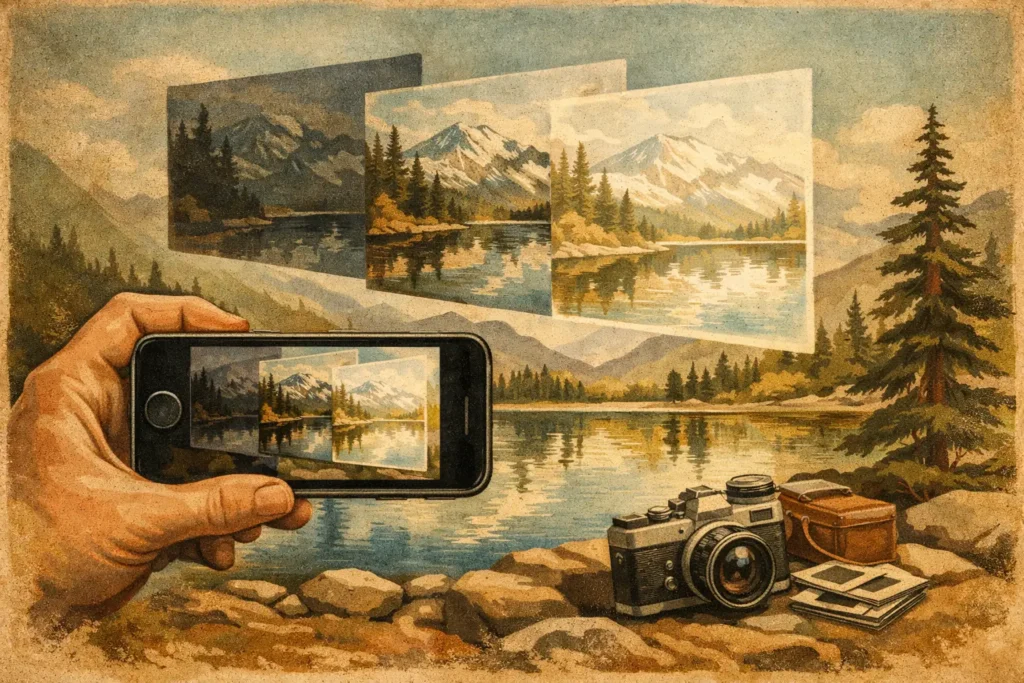
With auto exposure bracketing, the camera records the same scene at multiple exposure values. A darker frame protects bright skies, windows, and reflective surfaces. A brighter frame opens shadows in foregrounds and interiors. A middle frame preserves the scene’s normal exposure. HDR software aligns those captures, selects the best information from each, and tone maps the combined file into an image your display and export format can show.
The best choice depends on what you shoot. A real-estate photographer needs clean window detail and believable interior color. A landscape photographer may prioritize highlight control in clouds and shadow detail in trees or rock. Travel photographers often need fast processing from handheld brackets, where alignment and deghosting matter more than a long list of manual sliders.
An app built for bracketed photography should handle the practical work before you ever touch the look of the image.
It detects bracket sets without manual sorting
Finding every related frame is an overlooked part of HDR processing. After a shoot, a library may contain hundreds of photos, including bursts, edits, screenshots, and separate scenes captured minutes apart. Manually selecting the correct three or five frames slows down the entire process and makes it easy to miss a usable bracket.
Look for EXIF-based bracket detection. Exposure metadata gives the app a dependable way to identify photos captured as a sequence, rather than guessing based on visual similarity or capture time alone. This matters when you return from a trip or finish a property shoot with a full camera roll. No manual sorting means no wasted brackets.
It aligns frames before it blends them
Tripods help, but they are not always practical. Handheld brackets can shift slightly between frames as you breathe, adjust your grip, or move the camera. Even a minor shift can make rooflines, window frames, branches, and building edges look soft or doubled after merging.
Automatic alignment is therefore a baseline requirement, not an extra. Good alignment lets you work faster in the field and still preserve crisp architectural edges or fine landscape detail. It should happen in the merge process without requiring you to place control points or correct each set by hand.
It has deghosting that solves real movement
Alignment corrects camera movement. Deghosting handles subject movement between exposures. Leaves may blow across a bright sky. Water can change shape. A person can cross an interior. Cars, flags, clouds, and waves are common sources of ghosting.
There is a trade-off here. Aggressive deghosting can remove doubles, but it can also choose too much information from one frame and make a moving area look unnatural. Light deghosting may retain more tonal detail but leave traces of motion. The best HDR app for iPhone gives you a clear range of deghosting strength, so the merge can match the scene instead of forcing every subject through the same setting.
For a quiet interior, low or no deghosting may be enough. For foliage around a property or waves along a coastline, stronger deghosting can produce a cleaner result. The right tool makes that decision quick and visible.
Tone Mapping Should Give You Control, Not a Cartoon Look
HDR has a reputation for overprocessed images: glowing halos around buildings, gray skies, flattened contrast, and colors pushed past what the scene looked like. That style is not an unavoidable result of merging brackets. It usually comes from an aggressive tone-mapping choice.
Tone mapping is the stage that compresses a scene’s wide dynamic range into a usable image while deciding how local contrast, color, highlights, and shadows will appear. The goal is not always dramatic. Often, the best result is the one where window views remain visible, a room still feels naturally lit, and the image does not announce that it was processed as HDR.
A practical HDR workflow should offer distinct starting points such as natural, vivid, and dramatic looks. Natural works well for architecture, interiors, documentary travel work, and scenes where accurate color matters. Vivid can add presence without demanding extensive editing. Dramatic may suit stormy landscapes, weathered structures, or creative scenes with strong texture. What matters is being able to choose deliberately, then export rather than rebuild the merge from scratch.
Privacy Is Part of the Workflow
Photography libraries often include client interiors, family photos, location data, and unpublished work. A cloud-dependent editor adds an unnecessary question: where do the source brackets go while they are being processed, and what happens to them afterward?
For sensitive work, local processing is a meaningful feature. An iPhone HDR app that performs detection, alignment, deghosting, tone mapping, and export on the device keeps the workflow under your control. Nothing uploads. No account should be required just to merge a bracket set, and your original exposures remain in your library rather than being handed off to a remote processing queue.
Local processing also has a practical advantage when you are traveling, working at a property with poor reception, or reviewing images away from a reliable connection. You can process when you are ready, not when a server is available.
A Fast iPhone HDR Workflow: Detect, Merge, Export
The strongest mobile HDR workflow is short enough to use after every shoot. First, detect exposure sets from your photo library using their capture metadata. Second, merge the selected set with alignment and an appropriate level of deghosting. Third, export the final image at the resolution and file format that fits the job.
Export behavior deserves more attention than it gets. Full-resolution output preserves flexibility for printing, listing photos, portfolio work, and future edits. HEIC can be a practical choice when you want high image quality with smaller file sizes and easy Apple-device compatibility. If an app quietly reduces resolution or limits output options, it can turn a good-looking preview into a disappointing final file.
MergeHDR is designed around this Detect, Merge, Export sequence. It automatically finds 3-, 5-, and 7-frame brackets, aligns them, provides four deghosting levels, and lets you choose natural, vivid, or dramatic tone mapping before saving a full-resolution or HEIC result. Processing stays on your iPhone, iPad, or Mac, with no cloud upload and no manual bracket sorting.
When an HDR App Is Not the Right Tool
HDR merging is not a replacement for good capture technique. If the scene contains rapid, widespread movement, such as a busy crowd crossing the frame or wind moving an entire canopy of leaves, even strong deghosting has limits. In those cases, one carefully exposed frame may look more convincing than a merge.
Likewise, do not bracket every scene by default. If the contrast is modest and a single exposure holds both highlights and shadows, a single frame is faster and simpler. Bracketing earns its place when the scene exceeds what one exposure can retain: bright windows and dark rooms, sunset skies and shaded foregrounds, reflective water, backlit architecture, and interiors with mixed lighting.
The better your brackets, the better your merge. Keep the camera as steady as possible, avoid changing composition between frames, and use exposure spacing that protects highlights without making the brightest frame excessively noisy. A tripod remains useful for carefully composed architecture and landscapes, but reliable alignment makes handheld work far more realistic.
The right HDR app should make high-contrast scenes feel routine: capture the bracket, let the software identify the set, choose the amount of motion protection and the final look, then save a file you can use. That leaves more time for the next scene and less time hunting through a camera roll for three photos that belong together.
Let MergeHDR find your brackets.
MergeHDR detects exposure brackets in your photo library and merges them into HDR photos on-device — keeping every edit, album, favorite, and location. No account; free to try, with unlimited saves for $19.99 once or $9.99/year on iPhone, iPad, and Mac.