Private Photo Editing App for HDR Workflows
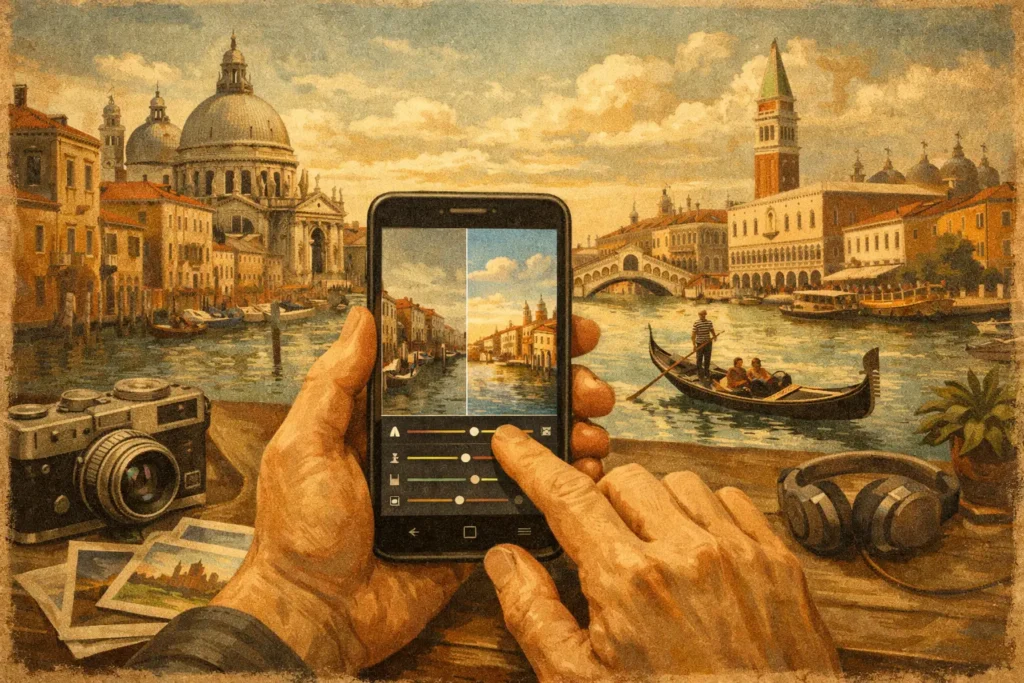
A bright window behind a dim interior can turn a routine edit into a compromise. Expose for the room and the sky washes out. Expose for the view and the furniture falls into shadow. A private photo editing app gives you a better option when you shoot exposure brackets: combine the useful detail from each frame without sending personal images, client work, or location-sensitive files to a remote server.
For photographers using Apple devices, privacy is not separate from workflow. Your photo library may include family images, unpublished travel work, real-estate listings, or commercial interiors. If an app requires account creation, cloud upload, or server-side processing before it can merge your brackets, the edit takes longer and your files leave your control. Local HDR processing keeps the work where it started: on your iPhone, iPad, or Mac.
What a Private Photo Editing App Should Do
Privacy claims matter only when the workflow supports them. A genuinely private editor processes the image on the device, without requiring you to upload source frames for analysis, merging, or export. Nothing uploads for the HDR merge itself, and there is no account requirement standing between a shoot and a finished image.
That distinction is especially useful with auto exposure bracketing. A three-, five-, or seven-frame set is not just one photo. It is a sequence of files, often captured seconds apart, that contains highlight, midtone, and shadow information. Uploading every set can add delay, use cellular data, and create another copy of work you may not want stored elsewhere.
Local processing also changes the practical pace of editing. A landscape photographer can merge brackets after a sunrise shoot without relying on a signal. A real-estate photographer can finish window-heavy interiors on site. A traveler can work from an iPad during a flight. The best result is not merely private. It is ready for your library in seconds.
Privacy does have a boundary worth understanding. Your Apple Photos library may be configured to sync through iCloud, and that is a separate choice you control in your device settings. A local HDR app can keep its own processing off remote servers while still working with photos that are part of your personal library. Check the app’s privacy label, permissions, and account requirements so you know exactly what is happening at each stage.
Why HDR Brackets Need More Than Basic Edits
A single exposure has a fixed range of usable light. In a high-contrast scene, the camera must choose what to protect. Bright clouds, white walls near windows, reflective water, and sunlit architecture can clip to featureless white. Lift the shadows later and you may introduce noise, weak color, and muddy contrast.
Bracketing solves the capture problem by recording the scene at different exposure values. The darker frame preserves highlights. The brighter frame holds shadow detail. Middle exposures provide the tonal information that makes the final image look believable rather than artificially compressed.
The problem moves to post-processing. Before you can create a clean HDR image, you need to find the related frames, verify that they belong together, align them, handle movement, choose a tone-mapping style, and export the result. On a busy shoot, manual sorting becomes the bottleneck. Similar compositions, bursts, and repeated angles make it easy to select the wrong frame or leave useful brackets unmerged.
A capable private editor should remove that overhead without removing your control. It should recognize bracket sets from EXIF capture data, group the frames automatically, and present the image-processing choices that actually affect the final photograph.
Detect, Merge, Export Without Manual Sorting
The practical HDR workflow has three stages: Detect, Merge, Export. Each stage should reduce work rather than create another editing task.
Detect related frames from capture data
EXIF-based detection identifies bracket sequences based on information recorded by the camera, such as capture time and exposure settings. This is more reliable than manually hunting through thumbnails, particularly when you have photographed multiple rooms, viewpoints, or changing light.
Look for support for the bracket counts you actually shoot. Three-frame sets are common for quick handheld work. Five and seven exposures provide more latitude in difficult scenes, including interiors with strong windows or landscapes with bright skies and deep foreground shade. Automatic grouping means no wasted brackets and less chance of merging unrelated shots.
Merge with alignment and deghosting
A tripod helps, but it does not eliminate movement. Handheld brackets can shift slightly between frames. Leaves move in wind, water changes shape, and people may cross through an architectural scene. If the software simply stacks frames without correction, edges can double and moving objects can leave translucent artifacts.
Automatic alignment corrects small shifts among the source images so static details line up. Deghosting addresses motion between exposures by determining which frame should supply information in moving areas. Multiple deghosting levels are useful because scenes differ. Low deghosting can preserve more natural texture when motion is minimal. Stronger deghosting can clean up foliage, waves, cars, or people, though aggressive settings may favor one exposure in a moving region and reduce the blended HDR effect there.
This is a trade-off, not a defect. Use the least deghosting needed for a clean result. For an empty interior on a tripod, you may need little or none. For a handheld waterfront scene with wind-blown trees, a higher setting can prevent distracting ghosts.
Export at the resolution your work needs
A fast preview is useful, but it should not be the final limit of the workflow. Export options should preserve the detail needed for prints, property listings, portfolios, and later edits. Full-resolution output is the right choice when image quality is the priority. HEIC can be a practical alternative when you need efficient storage in an Apple-centered library.
Before exporting, review the image at a meaningful size. Check window edges, fine branches against bright skies, texture in shadowed corners, and moving subjects. These areas reveal alignment or deghosting problems first. If the merge looks clean, save it back to your library and move on rather than reopening the same bracket set repeatedly.
Tone Mapping Is Where HDR Can Look Natural or Overdone
Merging captures a wider tonal range. Tone mapping decides how that range appears on screen. The aim is usually simple: retain a bright sky and usable interior detail while keeping the scene credible.
Natural tone mapping is often the best starting point for real estate, architecture, and documentary travel work. It keeps contrast controlled and avoids the gray, flattened appearance that can happen when every shadow is pushed too far upward. Vivid treatment can work for colorful landscapes and scenes where stronger local contrast supports the subject. Dramatic processing has a place for intentional, stylized images, but it can quickly create halos around rooflines and trees if the source scene is already contrasty.
There is no universal best setting. A warm sunrise over a valley can tolerate more presence than a clean kitchen listing. Start with the look that matches the job, then judge the result by believable brightness, clean edges, and stable color. HDR should reveal what the scene contained, not advertise the processing.
Choosing a Private Photo Editing App for Apple Devices
The useful question is not whether an app has an HDR button. Ask whether it handles the entire bracket workflow without adding friction. It should detect the sets you captured, align frames automatically, offer deghosting when the scene moves, and give you a small number of meaningful tone-mapping choices. It should also export without forcing an account, subscription-only cloud workflow, or low-resolution compromise.
MergeHDR is built around that approach for Mac, iPhone, and iPad. It identifies three-, five-, and seven-frame AEB sets in your photo library, merges them locally, and provides alignment, four deghosting levels, selectable natural, vivid, and dramatic looks, plus full-resolution or HEIC export. The point is not to turn HDR into a complicated desktop project. It is to make the useful parts automatic while leaving the final look in your hands.
For sensitive work, verify the privacy behavior before you import a full shoot. Read the App Store privacy information, see whether the app requires an account, and understand whether processing happens on the device. A clear “Data Not Collected” label and an on-device workflow are practical signals, not marketing decoration.
The right private editing workflow lets you spend less time sorting nearly identical exposures and more time deciding which finished image belongs in your library.
Let MergeHDR find your brackets.
MergeHDR detects exposure brackets in your photo library and merges them into HDR photos on-device — keeping every edit, album, favorite, and location. No account; free to try, with unlimited saves for $19.99 once or $9.99/year on iPhone, iPad, and Mac.