Why HDR Photos Look Fake and How to Fix Them
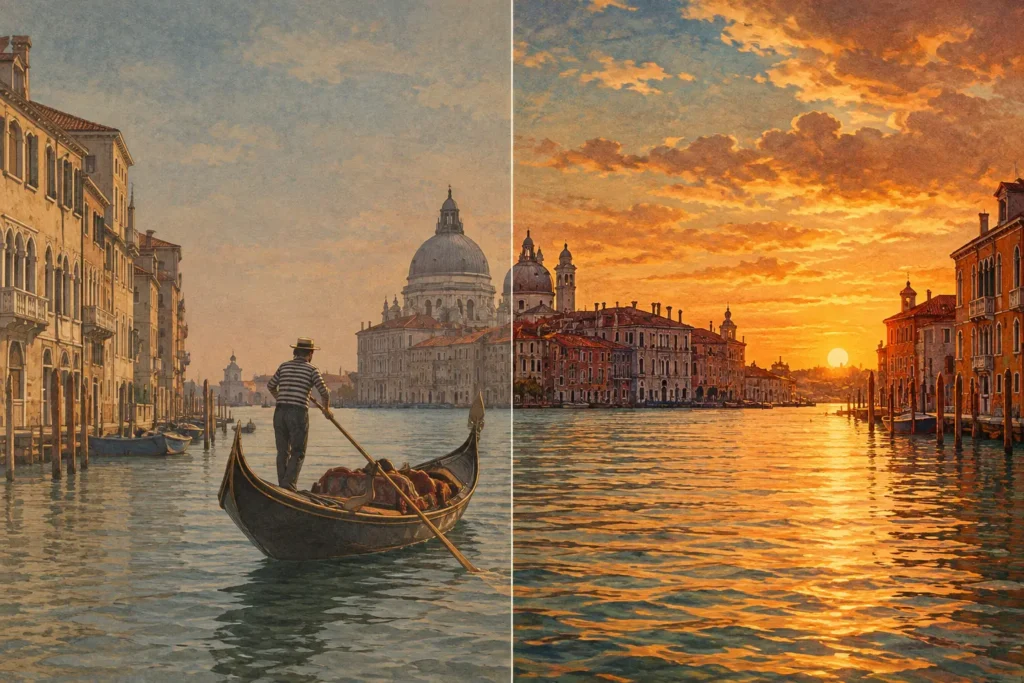
A bright window behind a dark interior is exactly where HDR earns its place. You want detail in the view outside and usable shadow detail in the room. Yet that same merge can end up with gray-looking windows, glowing edges around furniture, and colors that feel more illustrated than photographed. That is why HDR photos look fake: not because multiple exposures are inherently unnatural, but because the merge or finishing choices stop behaving like believable light.
Good HDR is usually invisible. The viewer should notice a scene with a natural range of detail, not a processing technique. Getting there depends on what happens before the merge, during alignment and deghosting, and especially during tone mapping.
Why HDR Photos Look Fake in the First Place
An HDR merge starts with a useful goal: combine bracketed frames so a scene can hold detail from deep shadow through bright highlight. A single exposure often cannot do that. Expose for a sunset sky and the foreground may turn black. Expose for an interior and the windows may clip to white.
The problem begins when the final image tries to give every area equal visual weight. Human vision adapts constantly. We look at a bright window, then our eyes adjust to the room. A photograph is fixed. If software lifts every shadow, compresses every highlight, and adds local contrast everywhere, the result can display more information than the eye expects to see at once. It reads as artificial, even when no detail has been invented.
The common causes are connected. Aggressive tone mapping flattens the relationship between light and dark. Excessive local contrast creates halos. Saturation and clarity can turn subtle materials into harsh textures. Poor alignment or weak deghosting makes movement visible as blur, doubled edges, or patchy artifacts. Each issue can be minor on its own. Together, they announce HDR.
Tone Mapping Can Flatten the Light
Tone mapping converts the wide brightness range in a merged HDR file into something a standard screen or export format can display. It is necessary. The question is how strongly it is applied.
When shadows are lifted too far, they lose their role in shaping the image. A shaded porch, a dark wood ceiling, or the corners of a room should often remain darker than the subject. Opening those areas slightly can reveal important detail. Opening them until they match midtones removes depth and makes the scene look evenly lit.
Highlight compression creates a similar issue at the bright end. Recovering a little cloud texture or window detail is useful. Pulling a white sky down until it becomes dull gray can make the whole image feel heavy. Real highlights can be bright. They do not need texture in every pixel to look correct.
A natural HDR edit keeps a clear hierarchy. The main subject still has contrast. Bright areas still feel bright, dark areas still anchor the frame, and the result does not look as though every surface received the same amount of attention.
Start With the Natural Look
If your software offers natural, vivid, and dramatic tone-mapping styles, start with natural. It gives you a credible baseline before you decide whether the subject needs more punch. This is especially useful for real estate, architecture, travel scenes, and landscapes with a recognizable sense of light.
Vivid or dramatic rendering can work when the intended style supports it. A weathered industrial scene, a storm landscape, or a creative social post may benefit from stronger local contrast. But it is a choice, not a repair for a poorly exposed or poorly bracketed scene. For client work and enduring images, restraint usually ages better.
Halos Are a Local-Contrast Problem
A halo is the bright or dark outline that appears along a high-contrast edge: a roof against the sky, a mountain ridge, tree branches, or furniture beside a window. It happens when the processing brightens dark areas near an edge while darkening adjacent bright areas to hold detail.
Small halos can be hard to spot while editing at a reduced preview size. Check the image at 100 percent around skylines, window frames, buildings, and tree lines. If edges appear to glow, reduce the strength of local tone mapping, clarity, structure, or sharpening. A slightly less dramatic image is almost always more believable than one with obvious outlines.
Foliage is a useful stress test. Leaves contain hundreds of small edges against changing light, so aggressive processing can turn trees into brittle, crunchy texture. If the leaves look metallic or outlined rather than soft and layered, back off before exporting.
Color Often Goes Too Far After the Merge
HDR can produce stronger color because properly exposed frames preserve information in bright skies and shadowed objects. That does not mean every color needs more saturation.
Oversaturated blue skies, electric green grass, and orange wood are familiar signs of an HDR image pushed too hard. The issue is often not global saturation alone. Local contrast can make color appear stronger, while shadow lifting can reveal color noise or color casts that were not obvious in the original frames.
Watch neutral surfaces. White walls, concrete, cloud highlights, chrome, and painted trim quickly reveal whether a color cast is developing. In interiors, mixed lighting is another challenge. Daylight at the windows and warm fixtures in the room may both be real, but pushing color too hard turns that difference into an unpleasant split. Correct the overall balance first, then use modest color adjustments only where the scene needs them.
Movement Makes HDR Look Broken, Not Just Fake
HDR merging works best when the bracketed frames describe the same scene. Handheld shooting can introduce small camera shifts. Leaves move in wind, water changes shape, people walk through rooms, and curtains move near open windows. Without alignment and deghosting, the merge may show duplicate objects, soft edges, or areas where the software chose the wrong frame.
Alignment corrects for camera movement between exposures. It is valuable even when you held the camera carefully, particularly with longer focal lengths or close foreground elements. Deghosting handles subject movement by selecting a consistent version of the moving area rather than blending conflicting frames together.
More deghosting is not automatically better. A calm interior with no moving subjects may need little intervention. A waterfront scene with waves, branches, and pedestrians may require a stronger setting. Inspect the result where motion occurred instead of judging only the overall exposure. Look at leaves, water edges, hands, cars, and curtain lines.
The best prevention starts while shooting. Use a tripod when practical, keep the camera steady for handheld brackets, and avoid long gaps between frames. In a real estate room, wait for people and pets to leave the frame. In a landscape, accept that wind-blown foliage may need deghosting or choose a calmer moment.
A Practical Workflow for Natural HDR
Natural HDR is less about chasing a preset and more about making deliberate decisions in order. Begin with a clean bracket set. Three exposures are often enough for moderate contrast; five or seven frames can help with extreme interiors, sunrises, and scenes with bright windows. Use exposure bracketing rather than trying to rescue clipped highlights and noisy shadows from one file.
Next, merge the complete set with alignment enabled when it is needed. Let deghosting match the amount of real movement in the scene. This is where automatic EXIF-based bracket detection saves time: related frames stay together, so you are not manually sorting near-identical shots or accidentally merging the wrong sequence.
Then evaluate the tone-mapped image at normal viewing size and at 100 percent. At normal size, ask whether the light feels credible. At full size, inspect halos, ghosting, noisy shadows, and edge detail. Reduce intensity before adding it. Preserve highlight brightness, keep some shadow depth, and use color with a light hand.
For Apple-device photographers, MergeHDR keeps this process direct: detect bracket sets, merge with alignment and selectable deghosting, then export a full-resolution image or HEIC ready for your library in seconds. Processing stays on your device. Nothing uploads, and there is no manual bracket sorting.
The Scene Should Decide the Treatment
Not every high-contrast scene needs the same result. A listing photo benefits from clean window detail, neutral walls, and an interior that still has believable shadow. A landscape may tolerate deeper blacks and a more expressive sky. Architecture can handle crisp detail, but vertical lines and neutral materials make halos especially obvious.
There is also a difference between natural and flat. A natural HDR image can have rich contrast, strong color, and a clear mood. The key is that the processing supports the light already present instead of replacing it. If the final image makes viewers wonder how you captured the range, that is usually a success. If it makes them notice the effect before the subject, ease back one step and let the photograph breathe.
Let MergeHDR find your brackets.
MergeHDR detects exposure brackets in your photo library and merges them into HDR photos on-device — keeping every edit, album, favorite, and location. No account; free to try, with unlimited saves for $19.99 once or $9.99/year on iPhone, iPad, and Mac.