How it works
How MergeHDR works
MergeHDR watches your photo library, finds the exposure brackets you already shot, and does the merge — you just approve it. Here's the whole path, one screen at a time.
1. Detection runs quietly in the background
You don't scan anything, and you don't tell MergeHDR what to look for. Every time new photos land in your library — from a camera import, an AirDrop, or straight off your iPhone — MergeHDR checks their metadata for the bracket signature: a handful of frames captured within a couple of seconds of each other, shot with the same lens and focal length, with exposure compensation stepping through a familiar −/0/+ pattern (or a wider 5- or 7-frame spread). That's all metadata — camera make, timestamp, EV, focal length — so it's fast and it costs you nothing in privacy: nothing is read at full resolution until you say yes.
Every set it finds lines up in the shelf along the bottom of the window, labelled with its frame count and EV range, and marked ready, queued or waiting for a tap — while the scan keeps looking. Nothing merges on its own: leave them there and your photos sit exactly as they were.
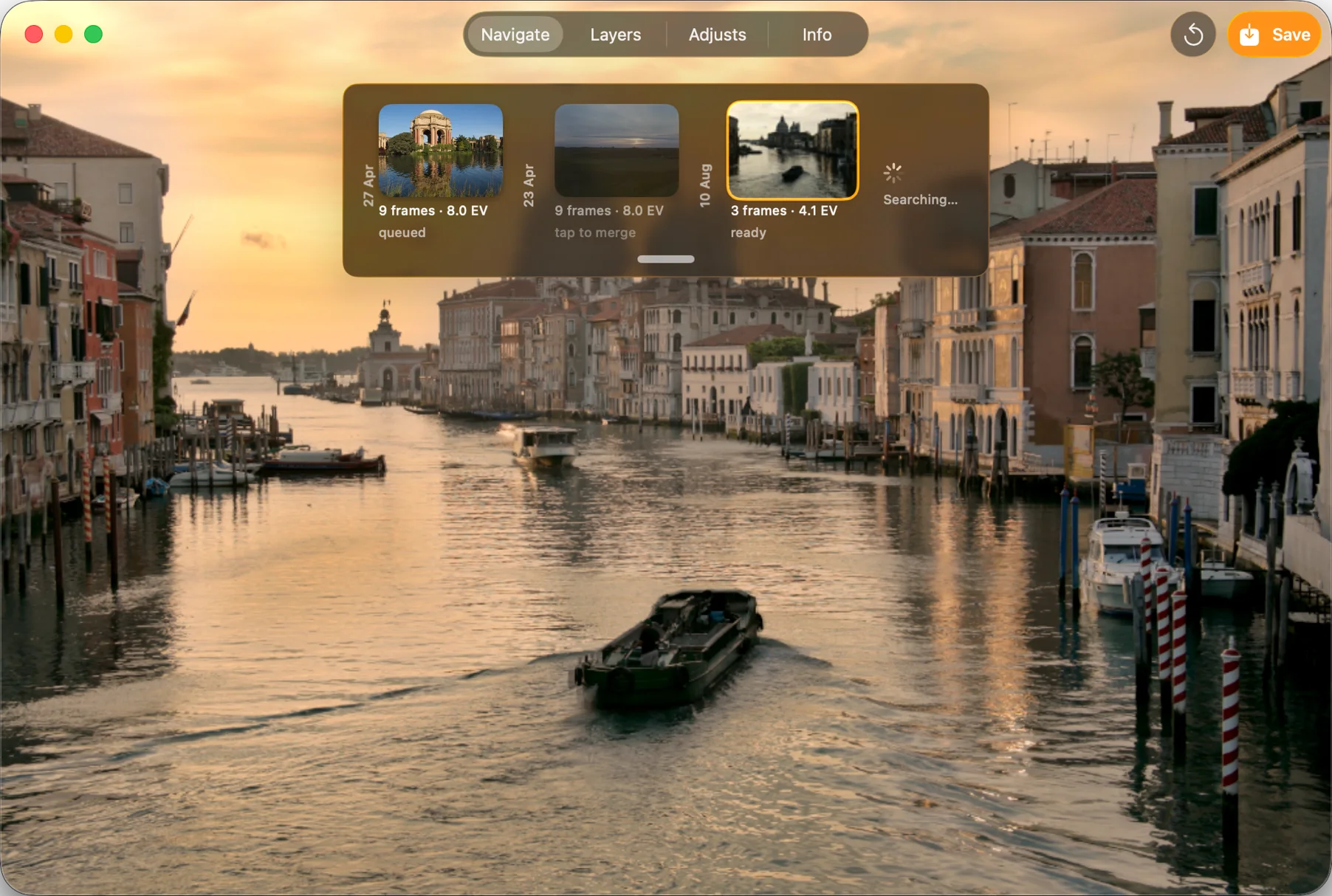
2. Review the set and choose how it merges
Pick a set from the shelf and you land on the merge review screen: the bracket set laid out frame by frame, with the options that shape the result sitting right alongside it.
- Alignment — on by default, correcting the small shifts between handheld frames; turn it off for a tripod set you know is already locked down.
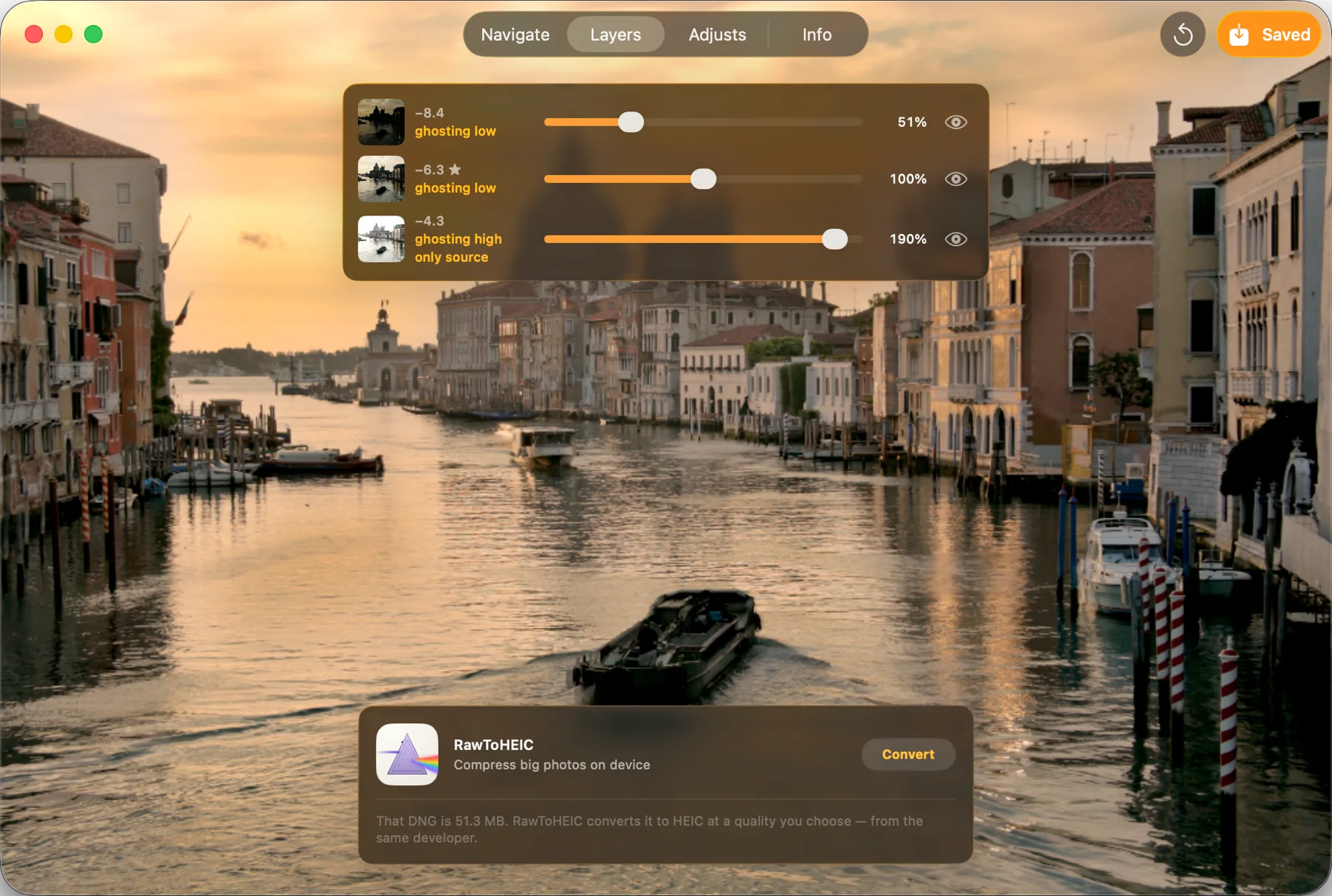
- Deghosting level — none, low, medium or high, for scenes with movement (traffic, water, people walking through frame). Higher levels trade a touch of fine detail for cleaner edges around anything that moved.
- Tone-mapping preset — a handful of styles from natural to punchy, and you can switch between them without re-merging: MergeHDR keeps the aligned, deghosted frames ready so a new look is nearly instant.
Every option previews on-device before you commit, and every pixel of the actual merge runs locally too — nothing about your bracket set is ever sent anywhere to produce this preview or the final image.
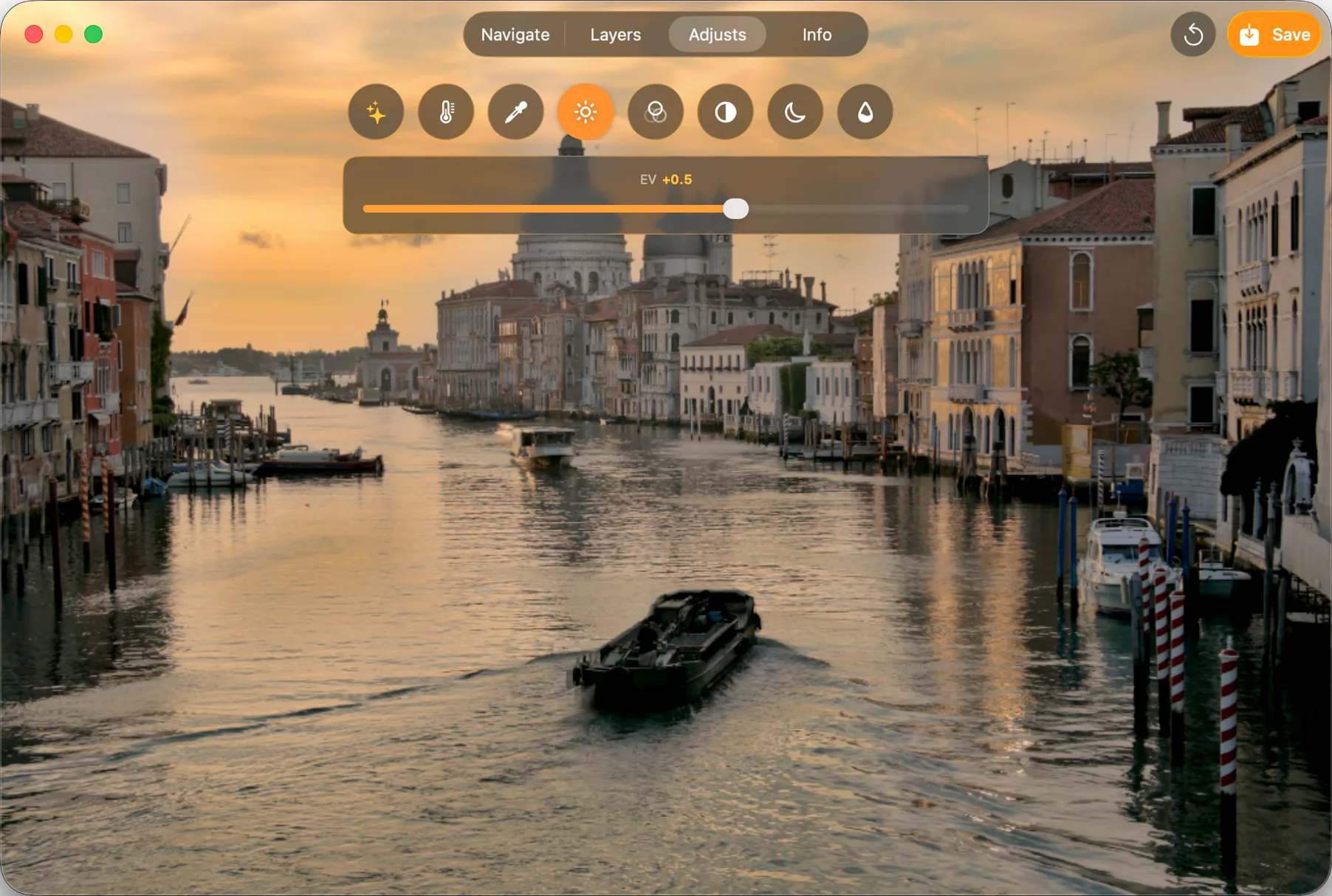
3. Export — full quality, or compact HEIC
Once you're happy with the preview, merge and export. You get a straightforward choice: save the merged result at full quality, or compress it to HEIC on the way out.
The "Compress to HEIC" step uses the same on-device pipeline that powers our other app, RAWtoHEIC (opens in a new tab) — typically a fraction of the size of the uncompressed merge, with the dynamic range and detail preserved. Either way, the export lands back in your Photos library next to the originals, in the same album, with its capture date and location carried over.
4. Your originals are safe for 30 days
MergeHDR never deletes anything by default. If you choose to clean up the source brackets after a merge — a separate, explicit step — they don't disappear immediately. They move to Recently Deleted, exactly like any other deletion in Apple Photos, and sit there for 30 days before they're gone for good. Change your mind at any point in that window and Photos → Albums → Recently Deleted brings every original bracket frame straight back.
Nothing about MergeHDR's cleanup step is silent or irreversible inside that window — you're always the one who decides when originals go, and you get a month to reconsider.
See it for yourself.
Detection, merging and export all run on-device — no uploads, no account. Free to try; unlimited saves are $19.99 once or $9.99/year, covering iPhone, iPad and Mac.