Cloud Versus Local Editing for HDR Photos
A three-frame bracket of a client interior, a travel photo with recognizable faces, or a landscape sequence captured before sunrise is more than image data. It is work you may not want copied to a remote server just to produce one finished HDR file. That is the practical question behind cloud versus local editing: where should the processing happen, and what does that choice cost or save in a real photo workflow?
For photographers working with exposure brackets, the answer is not simply about internet access. It affects privacy, turnaround time, library organization, image quality controls, and whether the workflow adds steps to a process that should be straightforward: detect the brackets, merge the frames, and export the result.
What cloud editing changes in an HDR workflow
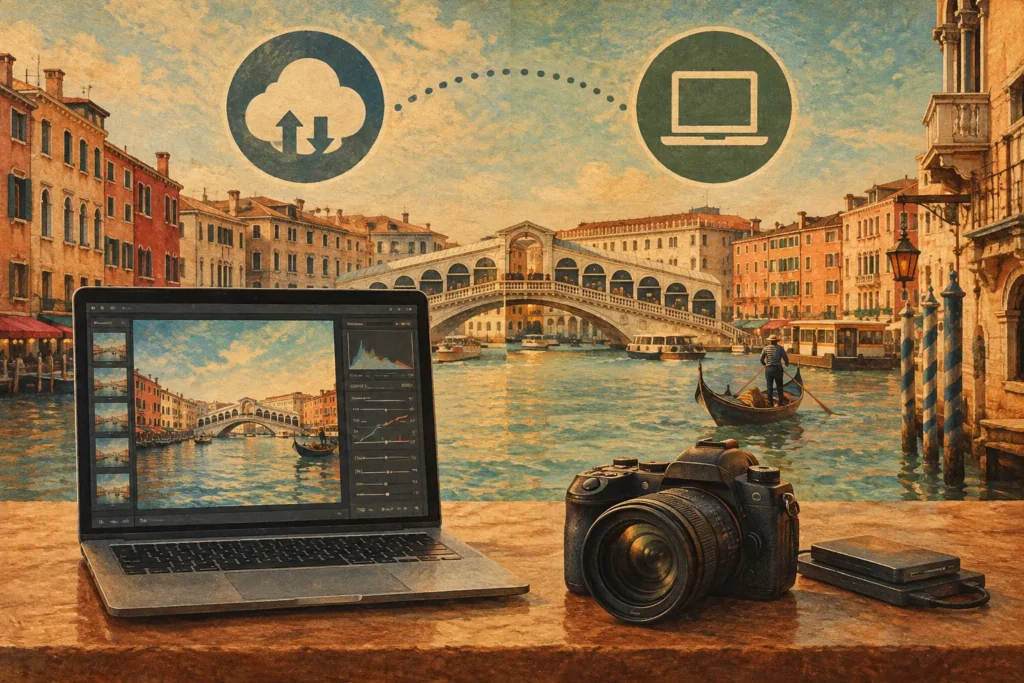
Cloud editing sends photos from your device to a remote service for analysis or processing. Depending on the app, that may mean uploading original files, proxy files, previews, or a combination of all three. The service performs the merge or adjustment remotely, then returns a processed image to your device.
This can be useful when the task needs computing power your current device does not have, or when a team needs access to the same files from different locations. A cloud library can also make it easier to continue editing on another device without manually transferring photos.
Those benefits come with operational trade-offs. A bracket set is not one photo. A five- or seven-frame sequence can quickly become a large upload, especially when you are working from a camera connected to a Mac or importing high-resolution files. Before you can judge the merge, you may be waiting for files to upload, process, and download again.
That delay is not always noticeable on fast home internet. It becomes more obvious in a hotel, on location, in a rural area, or when a connection is shared with other people. If you shoot real estate, travel, or architecture, those are often the exact places where brackets need to be reviewed and delivered quickly.
There is also a privacy decision. Uploading is not automatically unsafe, but it does mean your images leave your device. You need to know what is uploaded, how long it is retained, whether it is used for model training or service analytics, and what happens if an account is compromised. For personal photos, client interiors, or unreleased work, those questions deserve a clear answer before the upload begins.
Cloud versus local editing: the difference is control
Local editing processes images directly on your Mac, iPhone, or iPad. Your source frames remain on the device, the merge happens on the device, and the export is created on the device. Nothing uploads because the workflow has no remote processing step.
For HDR work, that local control has a concrete advantage: you can process brackets wherever you can access your library. There is no queue waiting on an internet connection and no separate upload folder to manage. When the frames are already in Photos, a local app can inspect their EXIF metadata, identify related auto-exposure-bracketing sets, and move directly into the merge.
That removes a common source of friction. Many HDR workflows begin with manual sorting: finding the three, five, or seven frames that belong together, checking timestamps, then stacking them in the correct order. It is repetitive work, and it is easy to miss a set when a library contains hundreds of similar images. EXIF-based bracket detection replaces that hunt with a useful starting point.
Local processing also keeps the review cycle short. If a merge needs stronger deghosting because leaves, water, cars, or people moved between exposures, you can adjust the setting and reprocess without waiting for another upload. If a natural tone mapping result is right for one image and a more dramatic look suits another, you can compare exports while the scene is still fresh in your mind.
MergeHDR is built around this approach on Apple devices: detect bracket sets in your photo library, merge them locally with alignment and deghosting controls, then export a finished image. No manual sorting, no wasted brackets, and no remote server dependency.
Where local editing has limits
Local is not automatically better for every photographer or every job. Processing large files uses device storage, battery power, and compute resources. An older phone may take longer than a current Mac, and a nearly full device can make any image workflow less comfortable. You still need enough available space for source images and finished exports.
Local editing also does not replace a deliberate backup plan. Keeping processing on-device protects your photos from unnecessary upload to an editing service, but a device can still be lost, damaged, or replaced. Your backup choice is separate from your editing choice. Some photographers may use encrypted storage, a managed photo library, or their own archive system while still choosing local processing for the actual HDR merge.
Collaboration can be another reason to choose cloud tools. If an editor, client, and photographer all need to comment on the same proof set, a shared online workspace may make sense. In that case, a practical approach is often to keep original bracket processing local and share only the selected finished files. That reduces transfer time and limits how many source frames are distributed.
How the choice affects image quality
The location of processing does not, by itself, determine whether an HDR image looks good. The quality of the merge depends on the source exposures and on the tools available during processing. Alignment matters when a bracket was shot handheld. Deghosting matters when anything in the scene moved. Tone mapping matters because recovering highlight and shadow detail is only useful if the result still looks believable.
A good local workflow should provide those controls without requiring a complex desktop suite. Automatic alignment can correct small shifts between frames. Multiple deghosting levels give you a way to handle movement without treating a still interior and wind-blown foliage as the same problem. Tone mapping choices such as natural, vivid, and dramatic let you decide whether the final image should stay restrained or show more contrast and local detail.
Export options matter, too. A full-resolution file is useful when the finished image will be printed, delivered, or edited further. HEIC can be a practical choice for a compact file that remains ready for an Apple-focused library and sharing workflow. The right format depends on what happens after the merge, not on a blanket rule about which format is best.
Choose the workflow based on the job
Cloud editing is worth considering when shared access is the priority, your files are already stored in a trusted online system, and a reliable connection is available. It can be useful for distributed teams and projects where remote review matters more than immediate local processing.
Local editing is usually the stronger fit when privacy, speed, and direct control matter most. It is particularly well suited to bracket-heavy work: sunset landscapes with bright skies and dark foregrounds, rooms with bright windows, architectural exteriors, and travel scenes you want to process before moving to the next location. The source frames stay close to the device and library where you already manage them.
For many photographers, the deciding question is simple: do you want an editing app to require a network service before it can finish your image? If the answer is no, local processing gives you a more predictable workflow. You can import, detect the bracket, merge the exposures, correct motion, choose the look, and save the result without handing the source files to another system.
The best workflow is the one that lets you spend less time managing files and more time checking the details that matter: clean window highlights, usable shadow detail, straight architecture, and natural movement handling. Start with a bracket set you know well, process it locally, and compare how quickly you reach an export you are comfortable keeping in your library.
Let MergeHDR find your brackets.
MergeHDR detects exposure brackets in your photo library and merges them into HDR photos on-device — keeping every edit, album, favorite, and location. No account; free to try, with unlimited saves for $19.99 once or $9.99/year on iPhone, iPad, and Mac.