HDR Apps Comparison for Apple Photographers
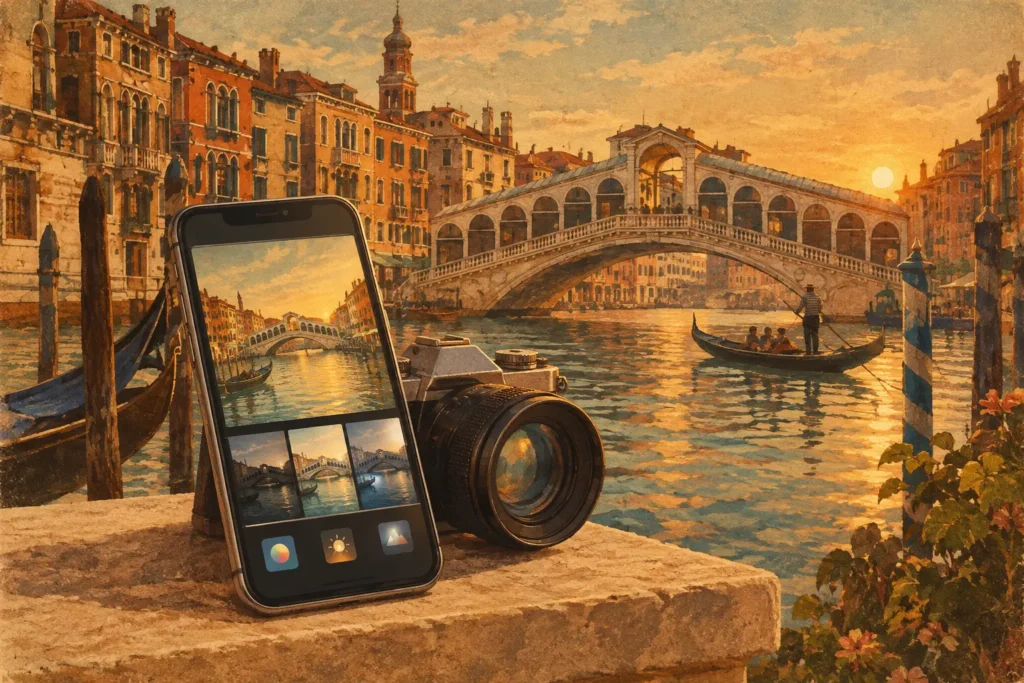
A three-frame bracket can look deceptively simple in your library: one dark frame for the sky, one balanced exposure, and one bright frame for the shadows. The work begins when that set is buried among hundreds of similar images. A useful HDR apps comparison should measure more than the final look. It should ask how quickly an app finds brackets, how well it handles movement, where it processes photos, and whether the exported file is ready to use.
For photographers working on iPhone, iPad, and Mac, the best choice depends on the way you shoot. A real-estate photographer may prioritize clean window detail and fast batch work. A landscape photographer may need natural foliage, controlled skies, and reliable handheld alignment. A travel photographer may care most about processing locally on an iPad without uploading a library to a server.
What an HDR App Must Solve
HDR starts with a basic exposure problem. A single exposure often cannot retain detail in a bright window and a dim interior, or in a sunlit sky and a shaded foreground. Auto exposure bracketing solves the capture side by recording several frames at different exposure values. HDR software solves the processing side by combining useful detail from each frame into one image.
That process has more failure points than a feature list suggests. The app must identify which images belong together, align small camera shifts, avoid double edges from moving subjects, map the extended tonal range into a viewable image, and export a file that fits the photographer’s next step. If any one of those steps is slow or unreliable, HDR turns into a manual editing task.
The practical question is not whether an app can make an HDR image. Most can. The question is how much sorting, correction, storage, and repeat processing it expects from you before the image is usable.
HDR Apps Comparison: Four Workflow Types
Built-in camera and photo-library HDR
Apple devices can capture and display high-dynamic-range photos, and computational photography can produce excellent results from a single tap. For everyday scenes, that convenience is hard to beat. There is no bracket selection, no merge screen, and no separate export decision.
The limitation appears when you intentionally shoot an AEB sequence with a camera or need direct control over a bracket merge. Built-in processing usually does not give you a dedicated workflow for finding 3-, 5-, or 7-frame sets, choosing deghosting strength, or testing natural versus more stylized tone mapping. It is optimized for automatic capture, not for managing deliberate bracketed photography.
Use this approach when speed at capture matters more than merge control. For interiors with window light, architecture, sunrise landscapes, and camera-based AEB workflows, a dedicated HDR merger is usually a better fit.
Full desktop HDR editors
Desktop HDR editors offer extensive control. They can support RAW development, local adjustments, layers, masking, presets, and detailed color work. For a photographer who wants to spend time shaping every image, that depth can be worthwhile.
The trade-off is overhead. Many desktop tools begin with import, manual image selection, stack creation, and a larger set of editing panels than a straightforward bracket merge requires. That can be appropriate for a hero image headed to a large print. It is less attractive when you have multiple clean AEB sets and want finished files without manual sorting.
These editors also tend to make the HDR merge one stage in a larger desktop workflow. If your actual need is to detect brackets in your existing Apple photo library, merge them cleanly, and return a full-resolution result, a specialized app can remove several steps.
Cloud-based photo editors
Cloud-connected editors make it easy to access images across devices and may offer AI-assisted edits, shared libraries, or browser-based tools. Those features are useful for teams and for photographers who already keep a complete cloud workflow.
But high-resolution brackets are heavy files, and uploading them can add delay before processing even starts. More importantly, cloud processing is not the right trade-off for every library. Travel images, client interiors, private homes, and unreleased work may call for a more controlled approach.
Local processing means the original bracket set stays on your device. Nothing uploads. There is no account requirement for the merge itself and no remote server dependency between capture and export. For privacy-conscious photographers, that is not a minor preference. It is part of the workflow.
Dedicated Apple-native HDR merging apps
A focused HDR merger sits between automatic phone photography and a full editing suite. Its job is narrow by design: find brackets, merge them accurately, provide the controls that matter, and save the result without wasting time.
This category is strongest when it uses exposure metadata to recognize related frames automatically. EXIF-based grouping avoids the familiar problem of scanning a library and wondering which near-identical shots belong to the same sequence. It should also align frames automatically, because even careful handheld shooting introduces small shifts that can soften edges or create halos.
MergeHDR is built around that workflow: Detect, Merge, Export. It identifies 3-, 5-, and 7-frame AEB sets in the photo library, processes every stage locally on Mac, iPhone, or iPad, then saves a full-resolution image or HEIC output. The goal is no manual sorting and no wasted brackets.
Compare the Controls That Affect the Final Image
Bracket detection and grouping
Manual selection looks harmless until a shoot contains dozens of exposure sequences. It is easy to include the wrong frame, omit one exposure, or combine shots from slightly different compositions. Automatic grouping based on exposure metadata is faster and more dependable, especially after a long real-estate or landscape session.
Look for an app that recognizes the bracket counts you actually use. Three frames cover many scenes. Five or seven frames can provide more latitude when the brightness range is extreme, provided the merge tool can manage them efficiently.
Alignment for handheld shooting
Tripods remain valuable for architecture, low light, and precise compositions. They are not always practical on a trail, in a busy city, or while traveling. Alignment compensates for small shifts between exposures so rooflines, tree branches, and interior details stay sharp.
Not every alignment issue is obvious at screen size. Inspect high-contrast edges and fine detail at full resolution. If an app merges quickly but leaves soft edges around windows or distant branches, its convenience comes at the cost of image quality.
Deghosting for moving subjects
Movement is where HDR merges can fail visibly. Leaves move in wind, water changes shape, cars pass through a scene, and people cross an interior. Without deghosting, the merge may show repeated subjects, translucent objects, or broken textures.
The right deghosting level depends on the scene. A still interior may need little intervention. A breezy overlook may need more. Multiple strength levels are useful because aggressive deghosting can sometimes suppress legitimate detail, while a lighter setting may preserve texture but leave motion artifacts. Control matters more than a single on-or-off switch.
Tone mapping and export choices
Tone mapping determines how the merged dynamic range becomes a normal viewable photograph. Natural rendering is often best for architecture, property work, and realistic landscapes where you want believable contrast. Vivid or dramatic processing can suit travel scenes and creative images, but strong local contrast can quickly make skies, foliage, and walls look artificial.
Export is equally practical. Full-resolution output preserves latitude for printing or further editing. HEIC can be a smart choice when you want high image quality with efficient storage in an Apple-centered library. The best format depends on where the photograph goes next, not on a universal rule.
Choose Based on Your Actual Workflow
Choose a full editor if HDR merging is only the first step in a detailed retouching process. Choose a cloud service if shared access and centralized storage outweigh upload time and privacy concerns. Choose built-in processing for spontaneous snapshots where automatic results are enough.
Choose a local, dedicated merger when you regularly shoot AEB and want the shortest route from bracket sequence to finished image. This is particularly effective for photographers who want to process on location, keep sensitive files on-device, and avoid treating every three-frame set like a small desktop project.
Before committing, run the same difficult sequence through each candidate: an interior with bright windows, a handheld landscape with fine branches, or a scene with moving water. Check the result at full size, not just on a small preview. Compare edge sharpness, window detail, motion artifacts, color, and how many taps it took to get there.
The right HDR app should leave you with more usable photographs and fewer decisions about file management. When the brackets are detected automatically, the merge is clean, and the export returns to your library in seconds, you can spend your attention on the next scene rather than the previous stack.
Let MergeHDR find your brackets.
MergeHDR detects exposure brackets in your photo library and merges them into HDR photos on-device — keeping every edit, album, favorite, and location. No account; free to try, with unlimited saves for $19.99 once or $9.99/year on iPhone, iPad, and Mac.