iPad HDR Photo Editing Without Manual Sorting
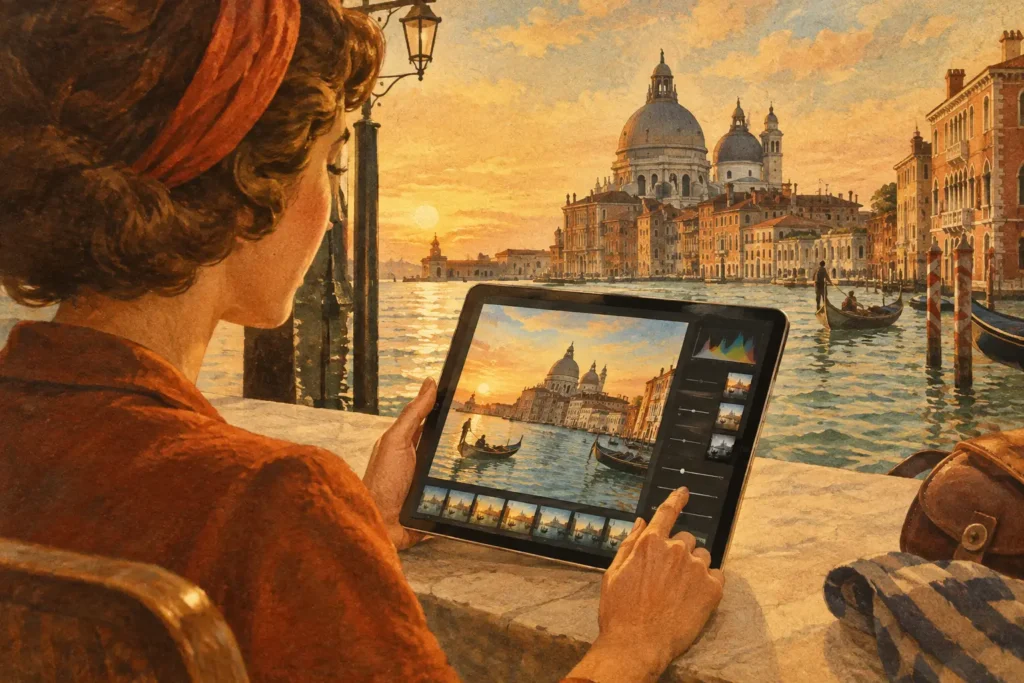
A bright window behind a real-estate interior, a sunset over a dark trail, or sunlit architecture beside deep shade can exceed what one exposure can hold. iPad HDR photo editing solves that problem only when the workflow is as efficient as the device: find the bracketed frames, align them accurately, control motion, and export a natural-looking file without turning your photo library into a sorting project.
A good HDR result is not defined by an exaggerated look. It is defined by believable highlight detail, usable shadows, clean edges, and a final image that still feels like the scene you photographed. The iPad is capable of that work, but the quality of the merge depends on what happens before tone mapping begins.
Why a Single Exposure Falls Short
Every camera exposure is a compromise. Expose for a bright sky and the foreground can collapse into shadow. Expose for a dim room and windows may become featureless white. Even when a RAW file gives you some room to recover highlights and lift shadows, there is a limit. Once detail is clipped or buried in noise, editing cannot fully recreate it.
Auto exposure bracketing gives you more information to work with. A typical three-frame set might include a darker frame that protects the highlights, a middle exposure for overall tone, and a brighter frame that preserves shadow detail. Five- and seven-frame sets can be useful for interiors with windows, architecture at golden hour, and other scenes with especially wide contrast.
HDR merging combines the usable detail from those separate exposures into one high-dynamic-range image. The goal is not to make every pixel equally bright. It is to preserve the visual hierarchy of the scene while avoiding clipped skies, blocked-up interiors, and muddy shadows.
The Real Friction in iPad HDR Photo Editing
The merge itself is only part of the job. For photographers bringing camera files into an iPad library, the slowest step is often identifying which images belong together. A burst of brackets may sit beside test shots, alternate compositions, and photos from another scene. Manually locating every three-, five-, or seven-frame sequence is repetitive and easy to get wrong.
That is where EXIF-based grouping matters. Exposure metadata can identify related frames by capture time and bracket information, reducing a folder of similar thumbnails to the actual merge candidates. No manual sorting means fewer missed brackets and less time spent zooming into filenames or checking exposure values one image at a time.
The second problem is alignment. Brackets made on a tripod are usually straightforward, but small shifts still happen from shutter vibration, wind, or an imperfect setup. Handheld brackets introduce more movement. If the source frames are not aligned before merging, high-contrast edges can produce halos, soft detail, or doubled lines around buildings and trees.
Finally, scenes move. Water, foliage, people, cars, and clouds can change between frames. A merger needs deghosting to decide which version of a moving area should appear in the final image. The correct setting depends on the subject: gentle leaves may need a lighter correction, while a person walking through an interior can need stronger deghosting. More correction is not automatically better, since aggressive processing can remove useful texture or create unnatural patches.
A Practical Detect, Merge, Export Workflow
The fastest workflow is built around the way brackets are already captured and stored.
Detect the bracket sets
Start by importing your bracketed photos into the Photos library on your iPad. If you shoot with a dedicated camera, preserve the original files and their metadata during import. The exposure sequence and capture timing are what allow compatible software to recognize the set correctly.
Automatic detection should separate actual bracket groups from ordinary single images. That matters when you return from a trip with hundreds of files, or when a real-estate shoot includes dozens of rooms and window views. You should be reviewing likely sets, not constructing them frame by frame.
Merge with the scene in mind
Once the set is identified, alignment should be the default rather than an extra repair step. It protects the fine lines that make architectural images convincing and keeps distant branches, rooflines, and shorelines from looking unstable.
Choose deghosting based on visible movement, not on a fixed habit. A still landscape on a calm morning may need none or a low setting. A scene with moving leaves, waves, or people needs more intervention. Inspect the result at a useful zoom level, particularly around window frames, tree edges, railings, and moving subjects. Those areas reveal merge errors quickly.
Tone mapping is where intent enters the process. A natural option is usually the right starting point for listing photos, travel images, and landscapes where accurate color and realistic contrast matter. A vivid look can add presence to a flat scene, while a dramatic look may suit storm clouds, textured architecture, or a deliberately stylized final image. The trade-off is simple: the more forcefully local contrast and saturation are pushed, the easier it is to make a photograph look processed.
Export for the next use
Export format should match the destination. Full-resolution output is the safer choice when the HDR image may be printed, cropped, delivered to a client, or edited again. HEIC can be a smart option when file size and easy library storage matter more than maximum interchange flexibility.
Keep the output alongside the original brackets until you have reviewed it on the display where it will be used. The merged file is the finished interpretation, but the individual exposures remain valuable source material. They give you the option to create a different look later without reshooting the scene.
Capture Choices That Make Better Merges
Good HDR editing begins before the import. Keep the camera steady whenever possible. A tripod remains best for interiors, architecture, and low-light landscapes, but a stable handheld position can work well with a fast bracket sequence. Avoid changing composition between exposures, and do not adjust focus or zoom mid-set.
Use enough exposure range to protect both ends of the scene. If the highlights in the darkest frame are still clipped, the bracket did not capture the detail you need. If the brightest frame does not reveal usable shadow information, you may be lifting noise instead of recovering detail. Review the histogram when the scene is critical, especially around bright windows and direct sun.
Movement is not always a reason to avoid HDR. It is a reason to be deliberate. A person standing still can be included cleanly; a crowd crossing through an interior may be better handled with a single exposure or a carefully chosen reference frame. Water and clouds often look excellent in HDR when the deghosting choice supports the intended texture rather than fighting it.
Keep the Workflow Local to Your Device
Photography workflows often involve sensitive material: client interiors, family photos, unreleased locations, travel documents caught in the background, or images from private property. Uploading every source frame to a remote server simply to create one merge adds delay and creates an unnecessary data-handling question.
On-device processing keeps the work on the iPad. Nothing uploads, no account is required to process images, and the original brackets stay under your control. That is not just a privacy statement. It is a practical advantage when traveling, working without reliable service, or processing a large library where cloud transfers would become the bottleneck.
MergeHDR applies this approach to the complete workflow: it detects 3-, 5-, and 7-frame bracket sets from photo metadata, aligns the exposures, offers four levels of deghosting, and lets you select natural, vivid, or dramatic tone mapping before saving a full-resolution image or HEIC. The point is not to add another complex editing suite to your iPad. It is to get from bracketed source files to a usable HDR image in seconds, with no wasted brackets.
When HDR Is the Wrong Tool
HDR is useful when the scene contains more contrast than one exposure can record well. It is not required for every photograph. Flat light, evenly lit portraits, and scenes with significant uncontrolled motion may look better from a single well-exposed RAW file.
It can also be the wrong choice when the contrast itself is the subject. A silhouette against a sunset may lose its impact if every shadow is opened. An interior with intentional pools of darkness can feel less dimensional when the image is forced toward equal brightness. Use HDR to retain information, then decide how much of that information belongs in the final photograph.
The next time a bright sky, window, or reflective surface forces a compromise, capture the bracket set and let the iPad handle the repetitive work. Your attention is better spent deciding what the scene should look like than finding which three thumbnails belong together.
Let MergeHDR find your brackets.
MergeHDR detects exposure brackets in your photo library and merges them into HDR photos on-device — keeping every edit, album, favorite, and location. No account; free to try, with unlimited saves for $19.99 once or $9.99/year on iPhone, iPad, and Mac.