On-Device HDR Review: Privacy, Speed, Control
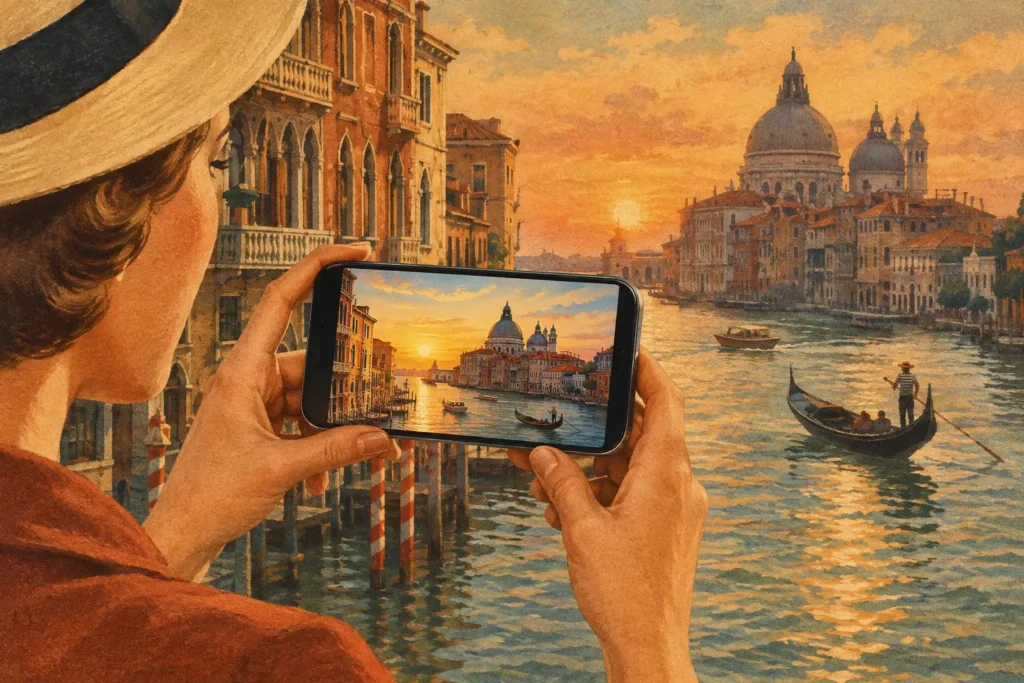
A three-frame bracket of a bright window, a dim room, and reflective flooring can become a tedious editing job before you ever judge the final image. This on-device HDR review looks at what changes when bracket detection, alignment, deghosting, tone mapping, and export happen directly on your iPhone, iPad, or Mac instead of on a remote server.
For photographers who regularly shoot high-contrast scenes, the real question is not whether HDR can recover detail. It can. The question is whether the workflow respects your time, keeps your images private, and produces a result you can use without manual sorting or repeated processing.
What an on-device HDR workflow should do
A useful HDR workflow starts before the merge. When you shoot auto exposure bracketing, your library may contain dozens or hundreds of nearly identical frames. Finding each 3-, 5-, or 7-frame set by eye is slow, especially after a travel shoot, a real-estate session, or an afternoon of landscapes.
On-device processing should use the exposure information stored with each photo to identify related brackets automatically. That means the app can surface the frames that belong together without asking you to build stacks manually. No manual sorting means fewer missed sets and less time spent comparing filenames, timestamps, and exposure values.
The merge itself has to solve two separate problems. First, it must align frames that were captured handheld or shifted slightly on a tripod. Second, it must decide how to handle movement between exposures. Leaves, waves, people walking through an interior, and vehicles outside a window can all create ghosting if the software combines mismatched pixels without correction.
A complete local workflow then needs to produce a finished image at a useful size and in a useful format. If the result is limited to a small preview or requires another service before it can be saved, the speed advantage disappears.
Why local processing matters for photographers
HDR brackets often include more than a sunset or a mountain view. They can show a client property, a family home, a private event, a travel itinerary, or location details embedded in metadata. Uploading those images to a server introduces a dependency that many photographers do not need.
With on-device HDR, nothing uploads. Your source frames stay in your photo library, processing occurs on the device you control, and the finished file returns to your library without an account or remote queue. That is a practical privacy benefit, not a marketing footnote.
Local processing also improves predictability. A cloud-based workflow depends on an internet connection, upload time, server availability, and sometimes file-size limits. A local workflow depends primarily on the performance and storage available on your Apple device. For a photographer editing in a hotel room, at a job site, or away from reliable Wi-Fi, that difference is significant.
There is a trade-off. Very large files and complex seven-frame scenes can take longer on older hardware than on a current Mac or iPhone. But waiting for local processing is different from waiting for an upload, a remote job, and a download. You remain in control of the files throughout.
On-device HDR review: image quality controls that matter
Automatic detection saves time, but it should not remove creative control. HDR can look natural and restrained, or it can emphasize local contrast for a more stylized result. Neither approach is universally correct.
For architecture and real estate, a natural tone map usually works best. It can hold window detail and lift darker areas while preserving believable wall colors, shadow depth, and contrast. Overprocessing can make rooms look flat, gray, or artificially bright.
For travel, landscapes, and dramatic weather, a vivid or dramatic tone map may be the better starting point. It can bring out color and texture in a sky, foreground, or distant terrain. The risk is pushing saturation and microcontrast so far that foliage develops halos or clouds take on an unnatural edge. A good HDR tool offers options, then lets the scene decide.
Deghosting deserves the same attention. A static interior shot with a fixed tripod may need minimal intervention. A scene with blowing trees outside windows, moving water, or people crossing a frame needs stronger deghosting to avoid doubled edges and smeared subjects. Multiple levels are useful because aggressive correction can sometimes suppress legitimate fine detail. Choose the lowest setting that removes visible motion artifacts.
Alignment is less visible when it works, but it is essential. Small shifts between brackets can soften architectural lines, railings, branches, and window frames. Automatic alignment should make handheld bracket sequences viable without adding a separate registration step to the workflow.
Detect, Merge, Export without wasted brackets
The best test of an HDR app is not a single perfect tripod sequence. It is what happens after a real shoot when your library contains mixed brackets, single frames, screenshots, edits, and photos from several locations.
Start with detection. The software should recognize exposure-bracket sequences using their EXIF data and group them for review. This is where a dedicated tool such as MergeHDR earns its place in an Apple photography workflow: it identifies supported 3-, 5-, and 7-frame sets automatically, so you can move directly to the images worth merging.
Next, merge the selected set. The software aligns the frames, applies the level of deghosting appropriate to the scene, and combines highlight information from darker exposures with shadow detail from brighter ones. The goal is not to make every pixel equally bright. It is to retain the tonal relationships that made the scene feel dimensional in the first place.
Finally, export the result. Full-resolution output matters if you plan to crop, print, send files to a client, or continue editing elsewhere. HEIC can be a practical choice when you want efficient storage in an Apple-native library, while full-resolution export keeps the result useful beyond a quick social post.
This three-step approach is simple because it removes steps that do not improve the photograph. You do not need to locate every bracket manually, build stacks, upload originals, or wait for a browser-based editor to finish. The control remains where it belongs: in choosing the image set, the motion handling, and the final look.
Where on-device HDR is strongest
On-device HDR is particularly effective when the range between bright and dark areas exceeds what one exposure can record cleanly. A backlit room with a bright exterior view is the obvious example, but it is far from the only one.
Landscape photographers can preserve a sunlit sky without turning a shaded foreground into featureless black. Travel photographers can handle bright courtyards, churches, streets, and waterfront scenes without carrying a laptop workflow into every edit. Architecture and real-estate photographers can balance windows, interior lighting, and darker corners while keeping vertical lines and neutral surfaces believable.
It is less useful when the subject moves substantially between every frame. A fast-moving person, vehicle, or animal may be better captured in a single well-exposed file, particularly if motion is more important than maximum dynamic range. Deghosting can correct many common movements, but it cannot recreate detail that was never consistently visible across the bracket.
Likewise, HDR is not automatically the right answer for every dramatic scene. If clipped highlights are intentional, or deep shadows are part of the mood, a single exposure may communicate the image better. The point of an efficient workflow is not to merge everything. It is to make the right merges quickly, with no wasted brackets.
A better standard than convenience alone
An HDR app should be judged by more than a polished preview. Ask whether it finds brackets accurately, handles handheld movement, gives you usable deghosting and tone-mapping choices, preserves resolution, and keeps your images on your device. If it does, HDR stops being a fragmented post-processing task and becomes a fast decision made while the scene is still fresh in your mind.
The best local workflow leaves you with a simple result: cleaner merges, private originals, and a finished HDR image ready for your library in seconds.
Let MergeHDR find your brackets.
MergeHDR detects exposure brackets in your photo library and merges them into HDR photos on-device — keeping every edit, album, favorite, and location. No account; free to try, with unlimited saves for $19.99 once or $9.99/year on iPhone, iPad, and Mac.