Top Privacy Focused Photo Editors for Apple Users
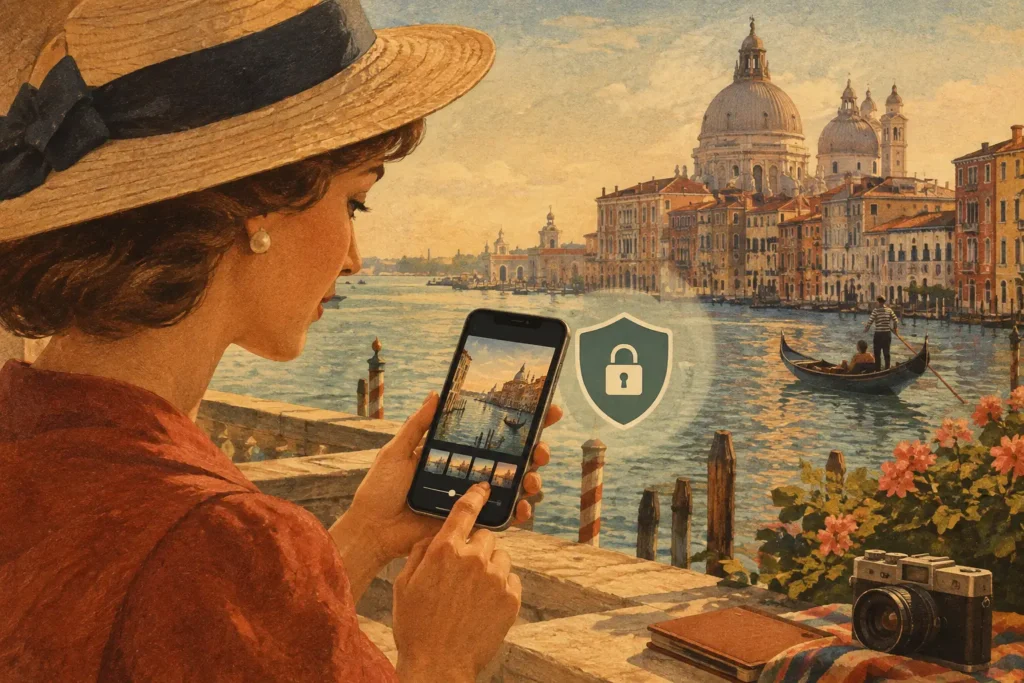
A privacy-first photo editor should not turn a sunset, a client interior, or a family photo into data you have to hand over. The top privacy focused photo editors for Apple users keep the work close to the device, minimize account requirements, and make it clear what happens to an image after you tap Edit. That sounds basic, but many modern photo workflows still route originals, previews, edits, and metadata through a cloud service by default.
For photographers, privacy is not just a preference about advertising. A photo library can reveal location history, client properties, travel dates, faces, camera serial information, and work in progress. The right editor lets you control the image without adding a remote server to a workflow that does not need one.
What makes a photo editor genuinely private?
“Private” is not a feature badge. It is a set of practical decisions about processing, storage, permissions, and accounts. An editor can have excellent local adjustment tools yet still require sign-in, sync an edited copy automatically, or collect usage information that does not help you make a better photograph.
Start with the processing path. For a strict privacy workflow, edits, previews, exports, and AI-assisted adjustments should run on the Mac, iPhone, or iPad whenever possible. Local processing means the photo does not need to leave your device just to apply a curve, remove a distraction, or merge exposure brackets.
Then look at storage. Apple iCloud Photos can be useful, but it is a separate choice from local editing. A local-first app can work with your library while you decide whether your library syncs through iCloud. Be cautious with editors that make their own cloud library the default destination. That may be convenient for cross-device access, but it creates another copy of work you may not want stored elsewhere.
Finally, check the account model and privacy disclosures. A one-time purchase or trial that works without an account is usually simpler to evaluate than a service that requires identity, ongoing sync, and subscription management before it will open your images. Read the current App Store privacy label and the developer’s policy, especially after a major app update.
Top privacy focused photo editors for Apple workflows
The best choice depends on whether you need quick library edits, detailed pixel work, or a dedicated HDR process. Privacy-minded photographers do not need one editor for every job. They need a tool that performs its specific job locally, predictably, and without wasted steps.
Apple Photos for fast, local library corrections
Apple Photos is the obvious starting point for everyday edits on Apple devices. Crop, straighten, adjust exposure, recover highlights, tune color, and apply selective edits directly in the library you already use. It is especially practical when the goal is a finished image in seconds rather than a layered file.
Its trade-off is depth. Photos is not a replacement for advanced compositing, complex retouching, or specialized HDR controls. Privacy also depends partly on your own library settings: if iCloud Photos is enabled, your library syncs through iCloud. Still, for photographers who want fewer apps, no separate social feed, and straightforward editing, it is a sensible baseline.
Affinity Photo for detailed local pixel editing
Affinity Photo is a strong fit for photographers who need layers, masks, selections, retouching, panorama work, and controlled compositing without building their workflow around a cloud catalog. It is available for Mac and iPad and is designed as a serious desktop-class editor rather than a simplified mobile adjustment panel.
That power has a cost: it asks more of the photographer. You need to organize files, understand layers, and manage exports yourself. For a complex architectural cleanup or a carefully masked landscape adjustment, that control is useful. For a five-frame bracket set that simply needs to become one clean HDR image, a general editor can add manual sorting and more steps than the task deserves.
Photomator and Darkroom for library-first editing
Photomator and Darkroom are worth considering for photographers who want more control than Apple Photos offers while staying close to the Apple photo library. Both are built around efficient adjustment workflows and make sense when you regularly refine individual photographs on iPhone, iPad, or Mac.
The privacy question is more specific than whether an app has cloud features. Check whether a feature processes locally, whether signing in is optional, and where edited files are stored. A tool may use the Apple Photos library as its foundation while also offering optional sync, premium services, or cloud-connected capabilities. Those are not automatically disqualifying. They simply mean you should choose settings deliberately rather than assuming every function is local.
These editors are best for exposure, color, crop, white balance, and routine finishing. They are less specialized when your problem begins before editing: finding related bracket frames, aligning handheld captures, and preventing movement from creating ghosts in the final merge.
The HDR exception: privacy needs a local merge workflow
High-dynamic-range scenes expose the limits of a single-exposure editor. A bright window and a dim room, a sunlit sky over shaded terrain, or a reflective waterfront at dusk can exceed what one file holds. Auto exposure bracketing captures several exposures so highlights and shadows have usable information, but it also creates a workflow problem.
First, you need to locate the matching 3-, 5-, or 7-frame sequence among hundreds or thousands of images. Next, the frames need alignment. Then moving foliage, water, people, or handheld shifts require deghosting. Only after that do tone mapping and export make sense.
A privacy-focused HDR app should perform every one of those steps on the device. MergeHDR is designed around that exact Apple workflow: it detects exposure-bracketing sets from EXIF data, aligns the frames, applies selectable deghosting, and exports a full-resolution result or HEIC without an account or cloud upload. Nothing uploads. That matters for real-estate interiors, client work, travel images, and any library you do not want copied to a remote processing queue.
The practical benefit is equally important. Local HDR is not only about avoiding cloud dependency. It removes the delay and uncertainty of uploading source files, waiting for processing, and checking whether every original was handled correctly. Detect, Merge, Export is a more direct path: no manual sorting, no wasted brackets, and a finished image ready for your library in seconds.
Watch for the difference between “AI” and local processing
Many editors now promote AI noise reduction, object removal, sky replacement, or automatic masking. Some of those features run on-device. Others send the image to a server, particularly when the feature is compute-intensive. The label alone does not tell you which is happening.
Before using an AI feature on sensitive work, ask three simple questions: Does the app state that processing occurs locally? Does it require an account or internet connection? Does the feature create a cloud copy, even temporarily? If the answer is unclear, treat the image as if it may leave the device until the developer documents otherwise.
How to choose the right private editor
Choose Apple Photos when speed and basic corrections are enough. Choose Affinity Photo when layers and precise manual control are the priority. Choose a library-first editor such as Photomator or Darkroom when you want deeper non-destructive adjustments without leaving a familiar Apple-centered workflow. Choose a dedicated local HDR tool when exposure brackets are part of your regular shooting process.
Do not confuse a long feature list with a better workflow. A landscape photographer may need alignment and deghosting far more often than a hundred preset looks. A real-estate photographer may value reliable window detail and full-resolution export over a cloud portfolio. A travel photographer working from an iPhone may care most about finishing a bracket set without carrying a laptop or uploading hotel Wi-Fi-sized files.
A quick privacy check before you import
Before committing a client shoot or personal archive to any editor, run a small test with a non-sensitive image. Use the app offline if possible. See whether it opens, edits, and exports normally. Check whether it asks for an account, creates a second cloud library, or changes where your files live. Review the permissions it requests and whether those permissions match the feature you intend to use.
You should also test export behavior. Confirm the final dimensions, file type, metadata handling, and destination. Privacy is weakened when an app keeps an unexpected copy, strips needed data, or forces an export path you cannot inspect.
The best private editor is the one that keeps the photo under your control while removing work you should not have to do. For bracketed captures, that means letting the device find the set, build the merge, and return a clean file to your library without sending your images anywhere else.
Let MergeHDR find your brackets.
MergeHDR detects exposure brackets in your photo library and merges them into HDR photos on-device — keeping every edit, album, favorite, and location. No account; free to try, with unlimited saves for $19.99 once or $9.99/year on iPhone, iPad, and Mac.