HDR Merger Review for Apple Photographers
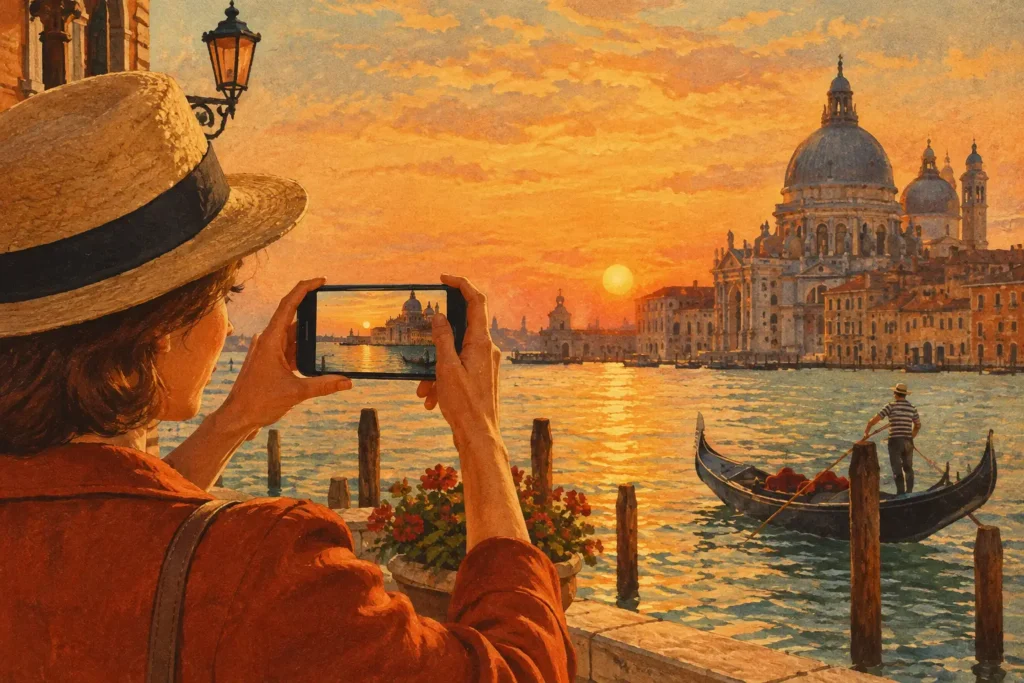
A three-frame bracket is easy to shoot and surprisingly tedious to finish. The camera creates the exposures in seconds, but the usual workflow asks you to find each set, confirm its order, correct handheld movement, manage motion, and decide whether the final image looks natural or overcooked. This HDR merger review looks at whether an Apple-native approach can remove that friction without taking control away from the photographer.
The short version: MergeHDR is built for photographers who already shoot auto exposure brackets and want them turned into usable HDR files without manual sorting. It is not trying to replace a full desktop editor with layers, masks, and local retouching. Its job is narrower and more practical: detect bracket sets in your library, merge them locally, and export a clean file ready for the next step.
What an HDR merger needs to solve
HDR is not simply a brighter photo. It is a way to preserve detail across a scene whose brightness range exceeds what one exposure can hold. A window-lit interior is a common example. Expose for the room and the view outside the window clips to white. Expose for the view and the interior falls into deep shadow. Bracketing captures several exposures so a merge can retain useful information in both areas.
The challenge begins after capture. A camera may place dozens or hundreds of individual frames in a library with little visual distinction between sets. If you shoot architecture, travel, or landscapes over several days, locating every three-, five-, or seven-frame sequence can become the most time-consuming part of HDR processing. That is time spent organizing rather than editing.
A useful merger also has to address two technical problems. First, images taken handheld rarely line up perfectly. Even a small shift can create soft edges or doubled details. Second, scenes often move between exposures. Leaves, water, vehicles, people, and handheld camera shake can produce ghosting if the software combines different positions of the same subject without correction.
HDR merger review: MergeHDR workflow
MergeHDR organizes its workflow around Detect, Merge, Export. That sounds simple because it is designed to be simple, but the automation is based on the information photographers actually create when they use auto exposure bracketing.
Detect bracket sets from EXIF data
Rather than asking you to select every exposure manually, the app identifies 3-, 5-, and 7-frame auto-exposure-bracketing sets in your photo library using EXIF information. This is the feature that most clearly separates it from a general-purpose editor. The app is looking for related frames, not asking you to reconstruct the shoot from a long camera roll.
For a real-estate photographer working through several rooms, this can prevent missed brackets and duplicate work. For a traveler processing a week of sunrise and city scenes, it means less pinching and scrolling through near-identical thumbnails. No manual sorting is not a minor convenience when brackets are a regular part of the workflow. It is the difference between a process you will use consistently and one you postpone.
Detection works best with properly captured AEB sequences. If exposures were shot individually with large pauses between them, changed focal lengths, or inconsistent camera settings, automatic grouping may be less predictable. That is not a weakness unique to this app. The more structured the capture, the more reliable any automated bracket workflow becomes.
Merge with alignment and deghosting
Once a bracket is detected, MergeHDR aligns the frames before combining their exposure information. Alignment matters even when a tripod was used, and it is essential for handheld sets. Architecture lines, branches against a bright sky, and fine interior details are all quick ways to spot a merge that is slightly off.
The app also provides four deghosting levels. This gives the photographer a practical decision rather than a one-size-fits-all correction. A quiet landscape with still water may need little or no intervention. A scene with wind-blown foliage, moving clouds, or pedestrians near an entrance may benefit from a stronger setting.
There is a trade-off. Higher deghosting can clean up movement, but aggressive correction may favor one exposure in a moving area and reduce some of the tonal blending you expected. Review critical parts of the image at full size, especially tree edges, waves, cars, and people. The right setting is the lowest level that removes visible ghosts without making motion look unnaturally frozen or patchy.
Choose the final tonal direction
A technically successful HDR merge can still look wrong if the tone mapping is too heavy. Halos around rooftops, gray skies, crushed blacks, and flat midtones are familiar signs of an HDR treatment that has become more noticeable than the subject.
MergeHDR offers Natural, Vivid, and Dramatic tone-mapping options. Natural is the logical starting point for interiors, real estate, architecture, and landscapes where you want the viewer to see a believable scene, not an obvious effect. Vivid can add useful separation when a file feels restrained, while Dramatic is better treated as a deliberate style choice than a default.
The value here is speed of comparison. You can test a different rendering without rebuilding the bracket selection or moving the files into a separate cloud workflow. If your goal is a finished photo that still resembles the light you saw, start conservatively. HDR should recover highlight and shadow detail, not erase the character of the light.
Export at the resolution your workflow needs
After processing, the final image can be exported at full resolution or as HEIC. Full resolution makes sense when the HDR image will receive more editing, be printed, or be delivered to a client. HEIC can be a sensible choice for library efficiency and everyday sharing within Apple-focused workflows.
Export format is not a universal quality decision. It depends on the destination. If a client, listing platform, print lab, or editing application requires a particular format, confirm that requirement before processing an entire batch. The useful point is that the merged result returns to a format you can use, rather than becoming trapped in a proprietary project file.
Local processing is a meaningful advantage
Photography libraries often include more than landscapes. They hold home interiors, client properties, family images, travel records, and location data. A cloud-based workflow can be convenient, but it also means uploads, account management, and reliance on a remote service before work can begin.
MergeHDR processes on the device. Nothing uploads, and no account is required for the core workflow. That has two direct benefits: sensitive images stay local, and processing remains available when internet access is slow, limited, or unavailable.
For photographers who work from an iPhone, iPad, or Mac while traveling, that is operationally useful rather than just a privacy statement. You can review a bracketed scene, run the merge, and prepare an export without waiting for a server queue or transferring source frames to another platform. The app’s Data Not Collected position is especially relevant when your library includes client work or private locations.
Where this approach fits, and where it does not
This is a strong fit for photographers who want an efficient HDR stage before their broader editing process. Landscape shooters can preserve a bright sky and shaded foreground. Real-estate and architecture photographers can recover window views and interior detail. iPhone and iPad photographers get a workflow that matches the devices where their library already lives.
It is less suited to someone seeking deep compositing, extensive local adjustments, panorama stitching, or a large catalog-management system. You may still want a dedicated editor after the merge for perspective correction, selective color work, retouching, or delivery-specific finishing. That is not a failure of the app’s scope. It is a clear division of labor: use the merger to create a solid HDR source file, then use another tool only when the image needs further craft.
Pricing also reflects that focused role. A free trial lets you test the detection and rendering on your own brackets, while unlimited saves are available through a $19.99 one-time purchase or a $9.99 annual subscription. The better option depends on whether you prefer permanent access or an annual payment model, not on image quality.
For Apple photographers who regularly shoot brackets, the most persuasive feature is not a dramatic preset. It is the removal of repetitive steps that produce no creative value. Capture clean AEB sequences, let the app find them, inspect alignment and deghosting where movement matters, then choose a tone mapping mode that serves the scene. That leaves more time for the part of editing that deserves your attention: deciding what the final photograph should say.
Let MergeHDR find your brackets.
MergeHDR detects exposure brackets in your photo library and merges them into HDR photos on-device — keeping every edit, album, favorite, and location. No account; free to try, with unlimited saves for $19.99 once or $9.99/year on iPhone, iPad, and Mac.