How to Process Seven Exposures for Clean HDR
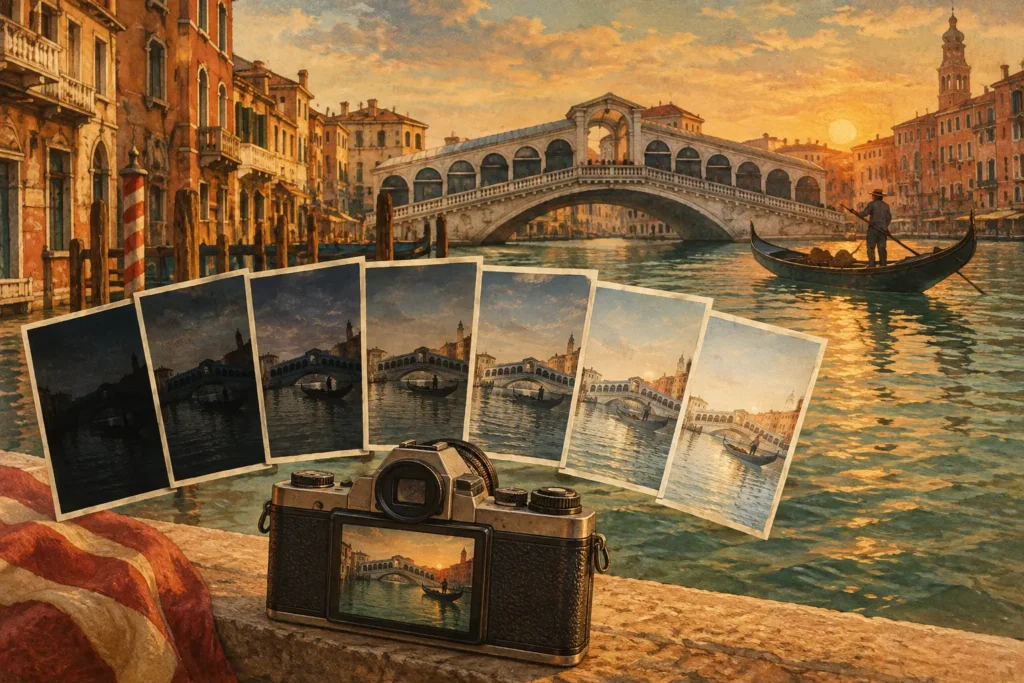
Seven-frame bracketing gives you more highlight and shadow information than a single file can hold, but only if the frames are treated as one set from the start. Knowing how to process seven exposures means preserving that range without creating halos, muddy shadows, or ghosts around anything that moved between frames.
A seven-exposure bracket is especially useful for real-estate interiors, architecture, sunrise landscapes, and scenes with bright windows or sky. The workflow is straightforward when your software can identify the set, align it accurately, and give you controlled deghosting and tone mapping. The goal is not an obviously processed HDR image. It is a clean final photo that holds detail where a single exposure would clip or block up.
Start with a usable seven-frame bracket
Before processing, confirm that the seven images belong together. A typical auto exposure bracketing sequence is captured at fixed exposure-value intervals, often one or two stops apart, while aperture and composition remain constant. The darkest frame protects highlights, the brightest frame opens deep shadows, and the middle frames create smooth transitions between them.
Seven frames are not automatically better than three or five. They are most valuable when the scene has a wide brightness range: a sunlit view through windows, a shaded foreground beneath a bright sky, or reflective interiors with practical lights. If the light is relatively even, a smaller bracket may be faster to capture and just as effective.
Check the sequence before merging. You want consistent framing and no large camera shift. A tripod is ideal for architecture and interiors, but handheld brackets can still work when frames were captured quickly and the alignment tool is capable. Also look for obvious movement: people walking through a room, leaves blowing, cars passing, water moving, or waves changing shape. Movement does not prevent an HDR merge, but it determines how much deghosting you will need.
How to process seven exposures without manual sorting
Manual selection is where a seven-frame workflow often becomes slow. Similar thumbnails make it easy to include a duplicate, omit a frame, or combine images from different sequences. Instead, use exposure metadata to identify sets captured as a single auto-exposure-bracketing burst.
MergeHDR detects compatible three-, five-, and seven-frame groups from EXIF data in your library. That means no manual sorting through near-identical thumbnails and no wasted brackets. Review the detected set, make sure it represents the scene you intended to merge, then move directly to processing.
This approach also protects context. The software can distinguish seven related exposures from seven unrelated photos taken in the same location, which matters after a long travel day or a full real-estate shoot. Less time grouping files means more time checking the image decisions that actually affect the result.
1. Align the frames before blending
Every exposure must describe the same geometry before it can contribute clean detail to the merged image. Even on a tripod, pressing the shutter, vibration, lens stabilization, or slight movement in the support can shift pixels between frames. Handheld sets usually need more correction.
Automatic alignment compensates for those small changes. Look closely at hard edges after the merge: window frames, rooflines, branches against sky, door trim, and text are useful checks. If they look doubled or soft, alignment was not sufficient or the source movement was too large.
Alignment has limits. It can correct camera movement, but it cannot make a moving subject occupy the same place in seven frames. That is the job of deghosting.
2. Choose deghosting for movement, not by habit
Ghosting occurs when the same object appears in different positions across the bracket. Without correction, the merge may show translucent people, repeated cars, smeared foliage, or uneven water. Stronger deghosting asks the processor to favor one exposure’s version of moving areas rather than blending all of them.
Use the lowest deghosting level that removes the artifact. Lower settings preserve more source detail and usually look more natural in a mostly static scene. Increase it when motion is clear and distracting, such as a person crossing an interior, leaves moving in a breeze, or traffic passing through a window view.
Four deghosting levels are useful because motion is rarely all-or-nothing. A calm architectural exterior with a few shifting tree branches needs a different setting from a busy lobby. After selecting a setting, inspect the likely trouble spots at full size. Pay attention to edges where motion meets straight lines, and to fine detail such as railings, foliage, and water.
There is a trade-off: aggressive deghosting can make moving regions look less detailed if the chosen source frame is noisy or underexposed. If a scene contains heavy movement across most of the frame, HDR may not be the best answer. A single well-exposed frame, or a carefully timed bracket with less activity, can produce the more convincing photograph.
3. Tone map for the scene, not the effect
The merged HDR data contains a wider brightness range than a normal display or print can show directly. Tone mapping translates that range into a viewable image while deciding how bright highlights, shadows, local contrast, and color should feel.
For real estate, architecture, and documentary-style travel work, begin with a natural tone map. It keeps window detail and shadow information without making walls gray, skies overly dark, or surfaces look artificially textured. A natural starting point is also easier to refine later because it avoids baking a strong visual effect into the file.
Use a vivid look when color separation and punch support the scene, such as a sunset, colorful street, or landscape with a clear subject. A dramatic look can suit weather, industrial spaces, and deliberately stylized work, but it can also exaggerate edge contrast and make interiors look less believable. It depends on the intended use. Listing photos and client documentation usually benefit from restraint; personal landscape work may allow more interpretation.
As you review the tone-mapped result, watch for three common problems. Halos around buildings or trees suggest excessive local contrast. Flat, gray shadows suggest the image has been lifted too far without enough black point or contrast. Over-bright windows may indicate that the highlight information was not preserved as expected, or that the selected look is pushing the midtones too aggressively.
Export at the right size and format
Once the merge looks right, export based on where the image will be used. Full-resolution output is the safer choice for editing, printing, property delivery, or future cropping. It preserves the value of capturing seven exposures in the first place.
HEIC is useful when you want efficient storage and straightforward sharing within an Apple workflow. It can reduce file size while retaining strong image quality, which is practical for a large travel library or quick client review. For files headed to a specific platform, check that platform’s delivery requirements before choosing a format.
Keep the original bracket set as well as the finished HDR image. The merge is your polished result, but the seven source frames are the raw material for a different deghosting choice or a new tone-mapping direction later. Local processing makes that revision practical: nothing uploads, and your photo library stays under your control.
A faster Apple-device workflow
The most efficient process is Detect, Merge, Export. Detect the seven-frame group from its capture metadata. Merge with alignment, an appropriate deghosting level, and a tone-mapping style that fits the scene. Export the final image at full resolution or as HEIC, ready for your library in seconds.
That workflow removes the repetitive parts of HDR without removing your judgment. You still decide whether movement needs correction, whether the image should look natural or bold, and what export serves the job. The rest should not require folder gymnastics, cloud uploads, or a complicated desktop HDR suite.
A good seven-exposure merge should make viewers notice the room, landscape, or light before they notice the processing. If the highlights feel believable, shadows retain useful detail, and moving elements do not distract, the bracket did its job.
Let MergeHDR find your brackets.
MergeHDR detects exposure brackets in your photo library and merges them into HDR photos on-device — keeping every edit, album, favorite, and location. No account; free to try, with unlimited saves for $19.99 once or $9.99/year on iPhone, iPad, and Mac.